MagickVoice Help Center — Voice
Dialer call history
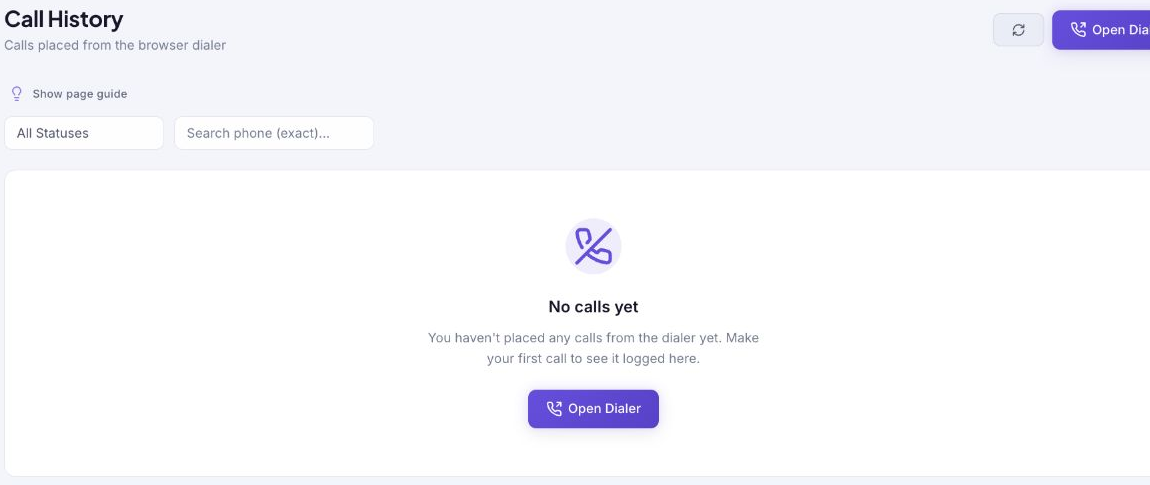
Review calls that were placed from the browser dialer, filter them by final status or exact number, view AI-generated summaries and transcripts, and open the dialer to make the next call.
Audience: WebRTC dialer users · Page address: /app/calls/dialer/history · Your admin may need to enable this feature
Common tasks
- Filter browser calls by status
- Search an exact number
- View call summaries and transcripts
- Refresh the call log
- Open the dialer
How to use this page
1. Find a browser-dialer record
Confirm the result of a call placed from your browser.
- Open Voice, then Call History. This history is specifically for calls placed from the browser dialer, not the wider AI Calls list.
- Use All Statuses to limit the view to Initiating, Ringing, In Progress, Completed, Failed, No Answer, Busy, or Canceled calls.
- Use Search phone (exact) with the full country-code number when you know the recipient.
- Select Refresh after a recent call finishes if its record has not appeared yet.
- If there are no records, use Open Dialer to make the first browser call. The empty-state message changes after a call is logged.
2. View call summaries and transcripts
Review what was discussed on completed dialer calls, just like AI calls.
- Select a completed call from the history list to open its detail page.
- Scroll to the Call Analysis section to read the AI-generated summary of the conversation, key topics discussed, and overall sentiment.
- Continue to the Transcript section to see the full turn-by-turn conversation with timestamps and speaker labels, similar to how AI call transcripts are presented.
- Use the summary to quickly understand what happened on the call without listening to the full recording, saving time when reviewing many calls.
- Summaries and transcripts are generated after the call completes. They appear automatically on the call detail page for dialer calls, alongside the recording and delivery facts.
Tips and troubleshooting
- Open the detail page after a call to review transcript, outcome, recording, and follow-up options in one place.
- When comparing calls, use status and date filters first, then open only the calls that need action.
- An AI call initiated from Calls is not the same as a browser-dialer call. Check the correct history before assuming a record is missing.
- A call that is still initiating or ringing may take time to reach a final outcome. Refresh instead of placing a duplicate call.