Campaign detail
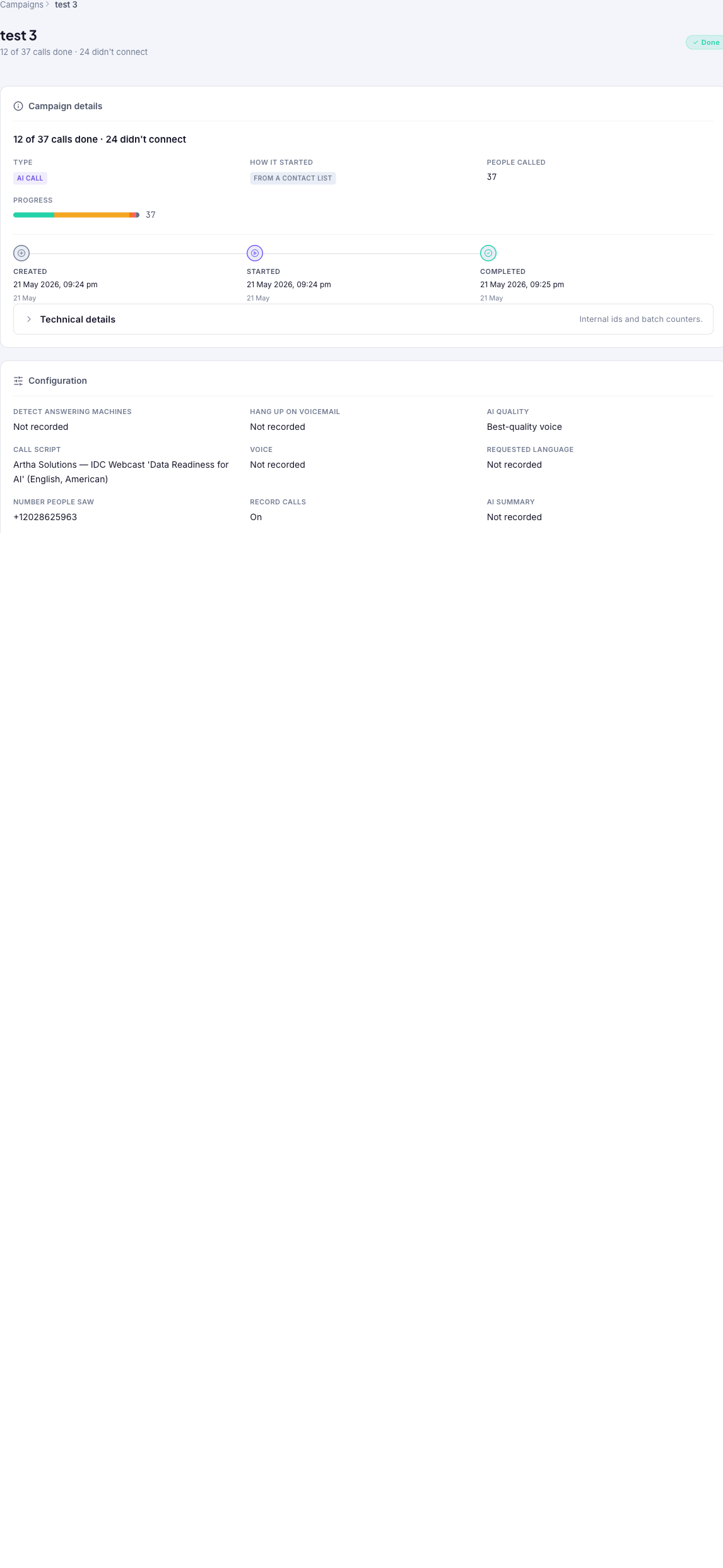
Inspect one campaign in full: a summary of its type, how it started, people called, and progress; a timeline of created / started / completed; the configuration it ran with; an outcome breakdown of how the calls went; and a per-call table with each recipient's status, duration, sentiment, outcome, and AI summary. Stop remaining queued calls or export the per-call data as a spreadsheet.
Audience: Campaign managers · Page address: /app/bulk-dispatch-jobs/:id · Your admin may need to enable this feature

Common tasks
- Review the campaign summary and timeline
- Check the configuration it ran with
- Read the outcome breakdown
- Stop remaining queued calls
- Inspect and export each call
How to use this page
1. Review the campaign at a glance
Confirm what a campaign did and when, without reading every call.
- Open the detail page by selecting a campaign's row on All campaigns. The breadcrumb reads Campaigns > the campaign name, and the name and overall status head the page.
- Read Campaign details: Type (AI call, Voice message, or Phone menu), How it started (Created here or From a contact list), People called, and Progress.
- Read the timeline — Created, Started, and Completed timestamps — to see how long the run took.
- Confirm the tenant in the top bar matches where the calls happened.
2. Check the configuration
See the exact settings the campaign ran with, useful for troubleshooting.
- Find the Configuration section. For an AI call it lists AI quality, Call script, Voice, Requested language, Number people saw, Record calls, Detect answering machines, Greeting grace, and more.
- Fields reading Not recorded on an older campaign predate settings capture — a note on the page explains those blanks reflect system defaults.
- Use Technical details to expand internal ids, batch counters, and provider/delivery settings.
3. Read how the calls went
Get the outcome breakdown for the whole campaign at once.
- Find How the calls went. The donut and legend break the total into outcomes — Connected, No answer, Line busy, Didn't connect, and Voicemail — with a count and percentage each.
- Use this to judge campaign health at a glance: a high No answer share may mean bad timing, while Didn't connect points at delivery errors.
- For trends across many campaigns rather than this one, open Campaign analytics.
4. Stop remaining queued calls
Cancel pending calls when a campaign needs to be halted, preventing stranded contacts from receiving unwanted calls.
- When a campaign is still running or has queued calls waiting to be placed, find the Stop remaining calls action near the campaign controls at the top of the detail page.
- Select Stop remaining calls to cancel all calls that are queued but not yet started. This immediately prevents any pending calls from being placed.
- Use this when a campaign was launched with incorrect settings, when circumstances change and the remaining calls should not proceed, or when queued calls are left hanging after a problem.
- Already-connected or in-progress calls complete normally; only queued calls waiting to start are canceled.
- Review the updated progress counts after stopping to confirm how many calls were canceled versus how many had already completed.
5. Inspect and export each call
Drill into individual recipients when you need the detail.
- Scroll to Each call for the per-recipient table: Phone, Status, Duration, Talk Time, Sentiment, Outcome, AI summary, and Time.
- Use the status dropdown to filter to one outcome (for example just No answer), and the pager to move through recipients.
- Select a row to open that individual call, or Download as spreadsheet to export the per-call data for reporting.
- To retry the ones that didn't connect, use the retry action on the campaign's row back on All campaigns.
Tips and troubleshooting
- Review campaign settings before dispatch because recipient mistakes can be expensive to unwind.
- Use analytics after delivery to compare completion, failures, and response trends before sending the next batch.
- The "How the calls went" chart is the fastest read on a campaign — connected vs. no answer, busy, didn't connect, and voicemail, as counts and percentages.
- Older campaigns may show "Not recorded" for some configuration fields; those predate settings capture and reflect system defaults.