MagickVoice Help Center — Messaging
Messaging connection detail
Inspect one messaging connection — its provider settings, live status, and message counts — and complete provider-specific setup such as sharing a Telegram invite link, scanning a WhatsApp Personal QR code, or verifying an email domain.
Audience: Messaging operators · Page address: /app/messaging/connections/:id · Your admin may need to enable this feature
Common tasks
- Review connection status and information
- Read the sent and failed message counts
- Copy and share the invite link
- Edit or revoke the connection
How to use this page
1. Review the connection
Confirm a connection's identity and state before relying on it to send.
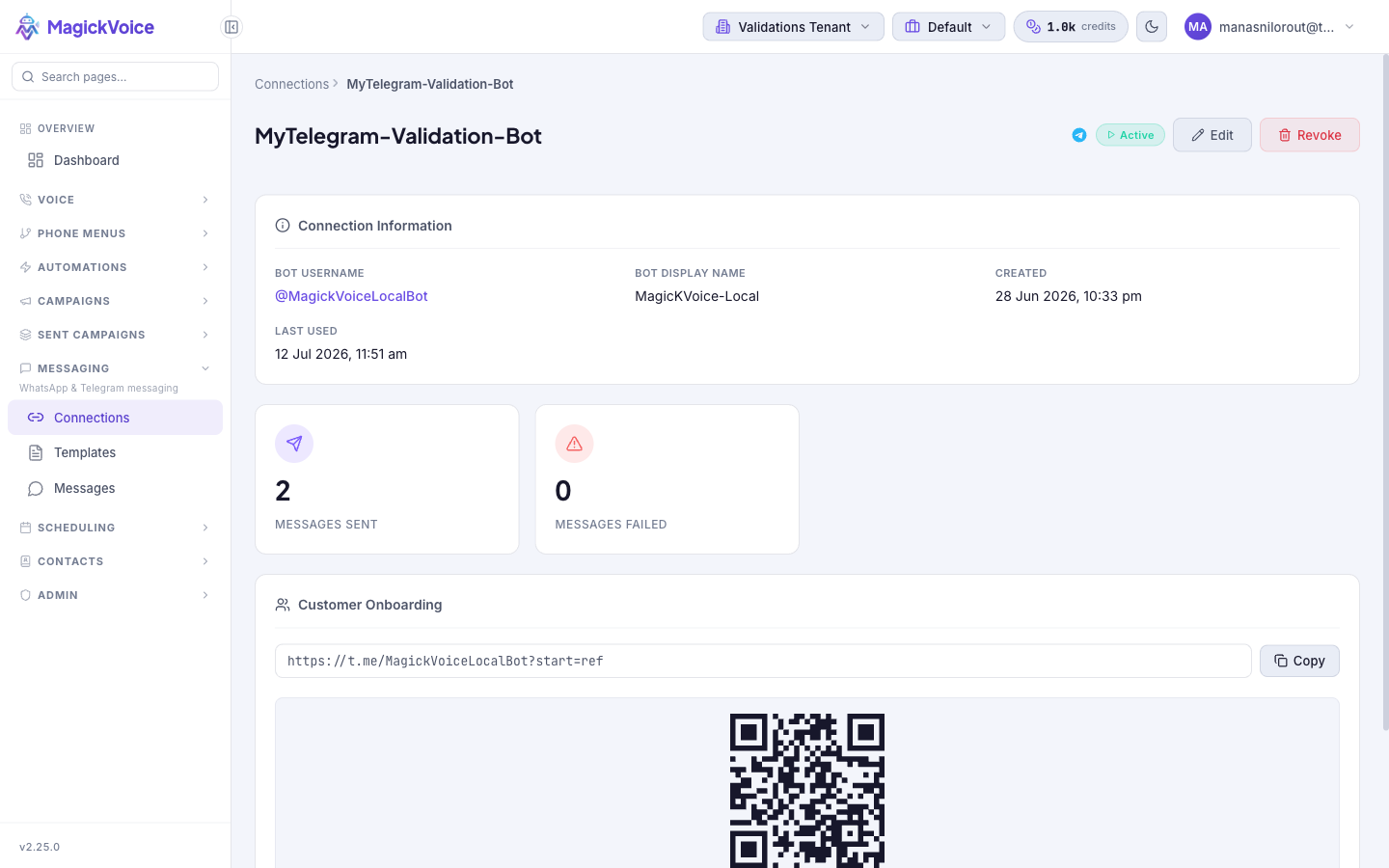
- Open the page by selecting a row on Messaging connections. The breadcrumb reads Connections > the connection name, and the title is the connection's name.
- Read the Status pill beside the title — for example, "Active — Currently running and operational" means the connection is running and can send.
- Use Edit to change the connection's settings, or Revoke to disable it. Confirm the connection is not still used by an automation or a pending message send before revoking it.
2. Read the connection information
Check the provider settings recorded for this connection.
- Find the Connection Information section, which lists the details specific to the provider. For a Telegram connection this shows the Bot Username (a t.me link), the Bot Display Name, the Created timestamp, and the Last Used timestamp.
- A WhatsApp or Email connection shows the settings for its provider instead — the phone number or the sending domain that identifies the connection.
- Use these details to verify the connection points at the account you expect before sending through it.
3. Check the message counts
See how much this connection has sent and whether anything is failing.
- Read the stat tiles: Messages Sent shows the total messages sent through the connection, and Messages Failed shows how many did not go through.
- A rising Messages Failed count is the signal to open Edit and check the connection's credentials or status.
- For the fuller send, delivery, and read breakdown across all connections, return to the connections list.
4. Onboard customers (Telegram)
Bring customers onto a Telegram bot so it can message them.
- In the Customer Onboarding section, find the copyable invite link — for example, https://t.me/
?start=ref — and use the Copy button to copy it. - Share the link with your customers. When they open it, Telegram prompts them to start your bot and share their phone number.
- Watch the counter showing how many contacts have shared their phone number to track onboarding progress.
5. Finish setup for other providers
Complete the provider-specific step that makes a non-Telegram connection usable.
- For a WhatsApp Personal connection, scan the QR code shown on this page with the WhatsApp app on the phone you are linking, to connect the account.
- For an Email connection, verify the sending domain by adding the generated DNS records; the connection can send once the domain is verified.
- Once setup is complete and the Status reads active, the connection is ready for automations and message sends. WhatsApp and Email sends use your approved messaging templates.
Tips and troubleshooting
- Keep connection health visible before sending important messages; disconnected accounts cannot deliver reliably.
- Open the message detail page for delivery evidence, payload review, and troubleshooting context.