Messaging templates
Review and manage the pre-approved WhatsApp message templates used for outbound messaging, sync approved templates from Meta, or create a new one for approval. Templates can include images, videos, and documents from the media library.
Audience: Messaging operators · Page address: /app/messaging/templates · Your admin may need to enable this feature
Common tasks
- Review templates and their approval status
- Sync templates from Meta
- Create a template manually
- Add media to templates
- Use a template when sending or in an automation
How to use this page
1. Understand what templates are for
Know why templates exist before you manage them, because they only matter for some channels.
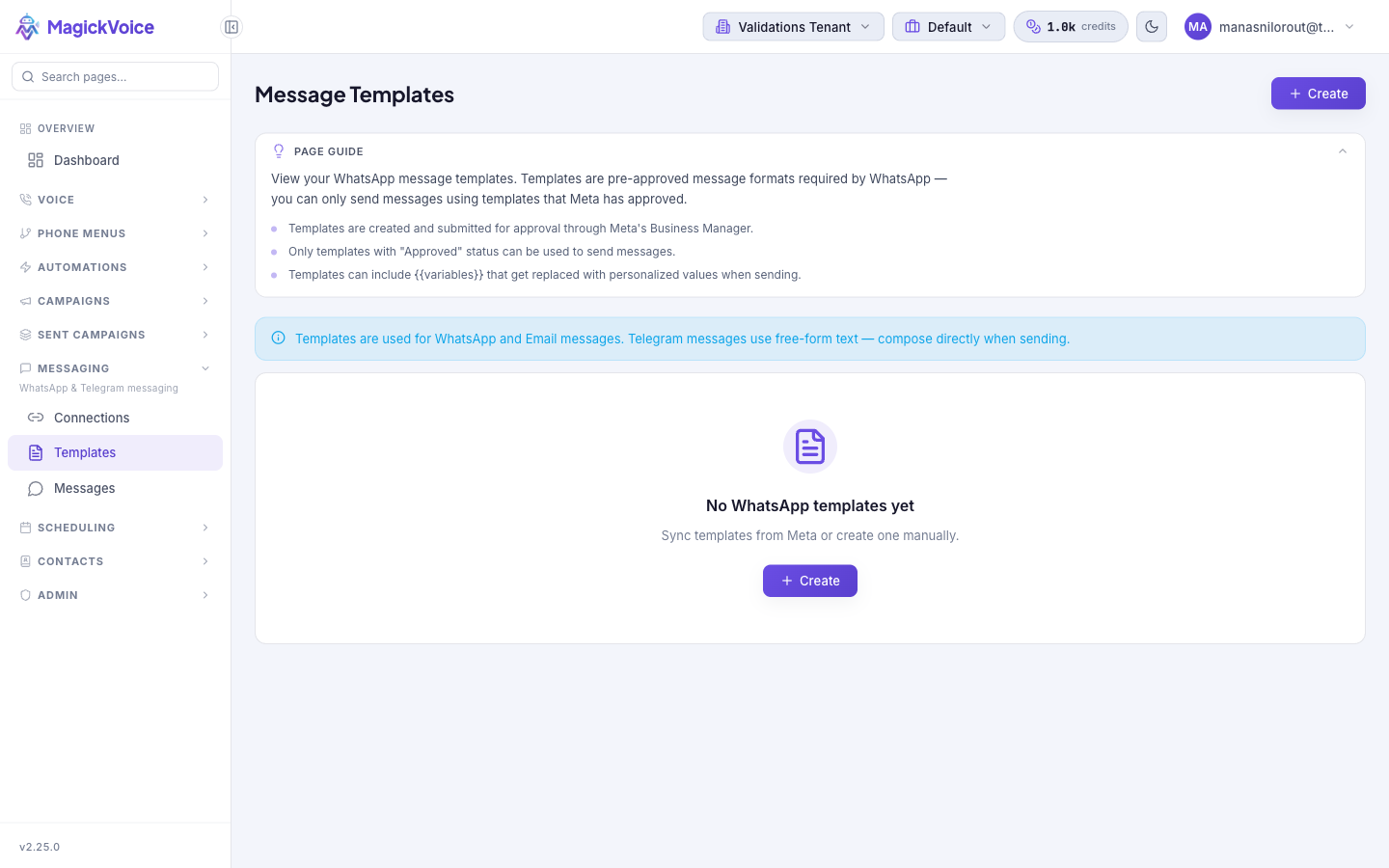
- Open Message Templates. The page lists your WhatsApp message templates — pre-approved message formats that Meta requires. You can only send WhatsApp messages using formats that Meta has approved.
- Note the channel scope: templates are used for WhatsApp and Email messages. Telegram messages use free-form text, so you compose them directly when sending and no template is needed.
- Read the page guide, which explains the essentials: templates are created and submitted for approval through Meta's Business Manager; only templates with Approved status can be used to send; and templates can include
{{variables}}that are replaced with personalized values when sending. - Sending an actual message also needs a live connection. Set up the WhatsApp or Email account first on Messaging connections.
2. Review your templates and their status
Confirm a template is ready before you rely on it, since only approved templates can send.
- Scan the list for the template you need. Each template carries a status from Meta — a template must be Approved before it can be used to send a message.
- If you have no templates yet, the page shows an empty state — "No WhatsApp templates yet" — with two ways forward: sync templates from Meta, or create one manually.
- Check the template's language and category so you pick the right variant when sending, and note which
{{variables}}it expects so you can supply their values.
3. Sync templates from Meta
Pull in templates you already created and got approved in Meta's Business Manager, so you do not have to recreate them here.
- Use the sync option from the Message Templates page to fetch your existing templates from Meta's Business Manager.
- Synced templates arrive with the status Meta has assigned them — only the ones marked Approved are usable for sending.
- Sync again whenever you approve or change templates in Business Manager so the list here stays current.
4. Create a template manually
Draft a new template here and submit it for Meta approval, when you would rather build it in MagickVoice than in Business Manager.
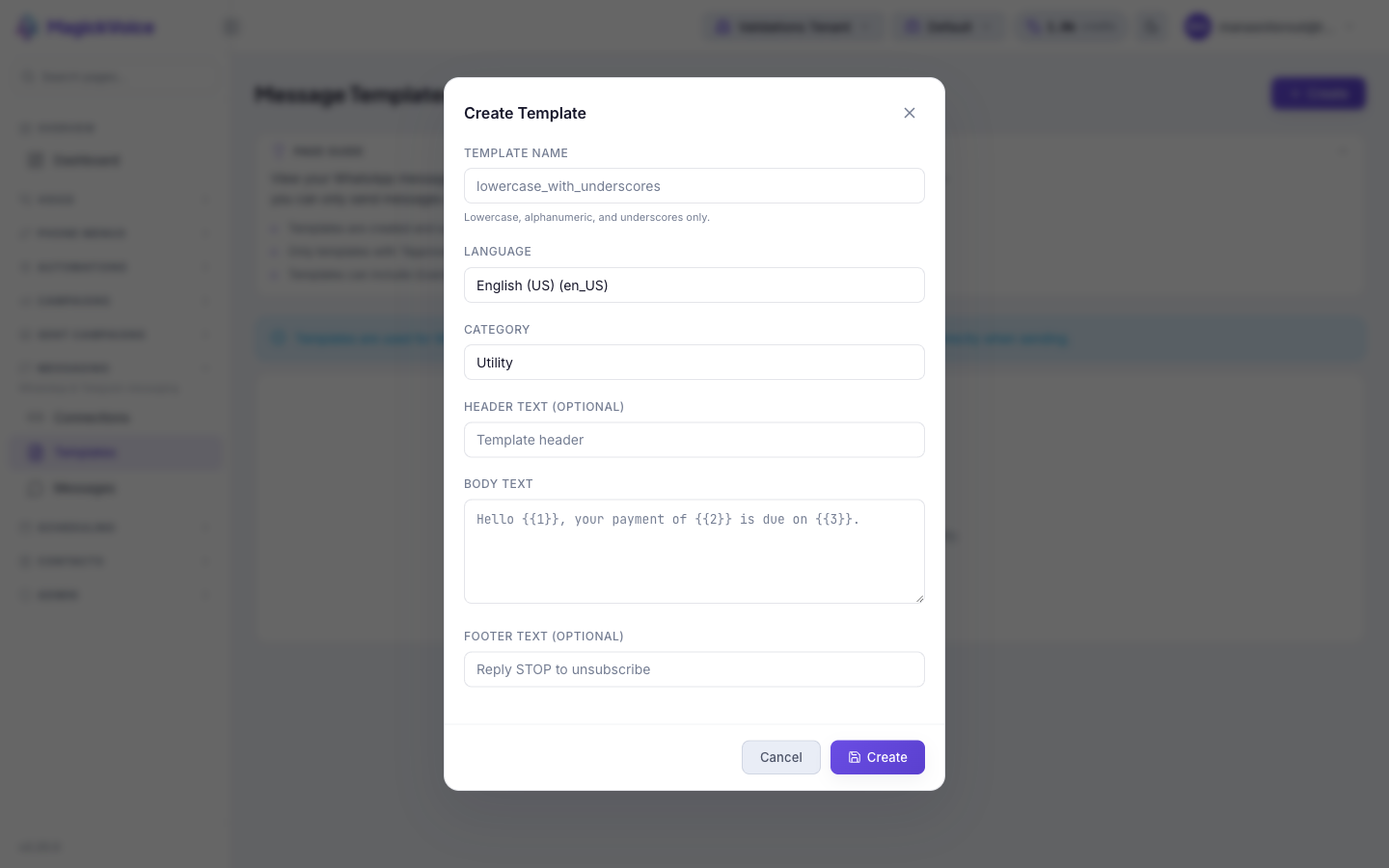
- Select Create (top right, or the button in the empty state) to open the Create Template dialog.
- Enter a Template Name using lowercase letters, numbers, and underscores only (for example
payment_reminder) — the helper text andlowercase_with_underscoresplaceholder show the required format. - Choose a Language. It defaults to English (US) and offers a wide range of languages, including English (UK), Hindi, Telugu, Tamil, Spanish, Portuguese (BR), Arabic, French, and German.
- Pick a Category: Utility (the default), Marketing, or Authentication. Match it to the message's purpose, as Meta reviews templates against their category.
- Optionally add Header Text for a short heading or select Add Media to include an image, video, or document in the template header. Media is uploaded to and managed through the media library.
- Write the Body Text. WhatsApp templates use numbered, positional variables —
{{1}},{{2}},{{3}}— that are filled in when sending, as in "Hello {{1}}, your payment of {{2}} is due on {{3}}." - Optionally add Footer Text, such as "Reply STOP to unsubscribe." Select Create to submit the template, or Cancel to discard it.
5. Add media to a template
Include images, videos, or documents in WhatsApp templates to make messages richer and more engaging.
- When creating or editing a template, find the Header section and select Add Media instead of entering header text.
- Choose the media type you want to include: Image, Video, or Document. Each template can include one piece of media in its header.
- Upload the file from your device or select one from the media library. The media library stores all uploaded files so you can reuse them across multiple templates and campaigns.
- Use the media library to organize and manage your files — remove unused media, add new files, and review what is available for templates and campaigns.
- When sending a message with this template, the media is delivered as part of the WhatsApp message automatically. Recipients see the image, video, or document at the top of the message.
6. Use an approved template
Put a template to work once Meta has approved it, so your outbound messages use a sanctioned format.
- Confirm the template shows Approved status here, and that the matching WhatsApp or Email connection exists on Messaging connections.
- When sending, choose the approved template and supply values for its
{{1}},{{2}}positional variables so each recipient gets a personalized message. - Automations can send from an active template too: an Email step in the automation builder lets you select an active template — see New automation and the Automations overview.
- For Telegram follow-ups, skip templates entirely and compose the message text directly when sending.
Tips and troubleshooting
- Keep connection health visible before sending important messages; disconnected accounts cannot deliver reliably.
- Open the message detail page for delivery evidence, payload review, and troubleshooting context.