MagickVoice Help Center — Scheduling
New recurring schedule
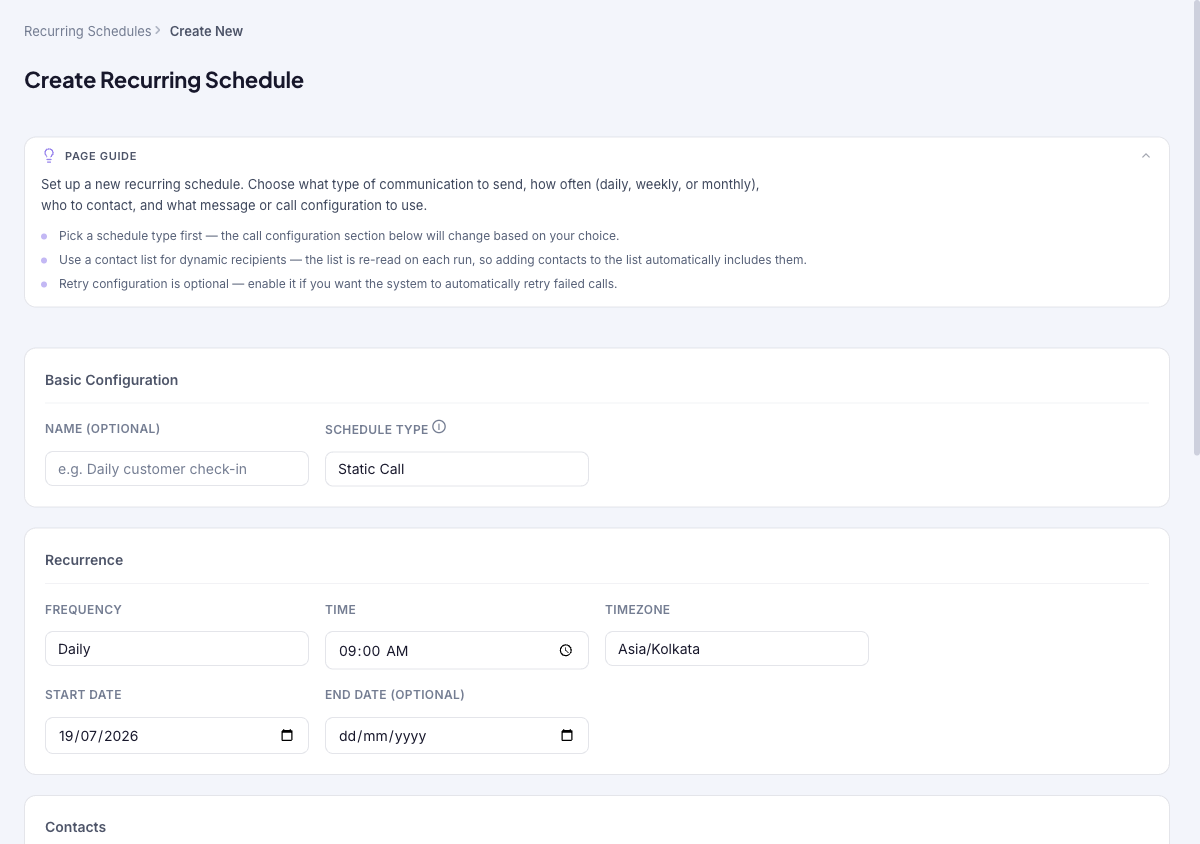
Create a recurring schedule in one form: name it and pick a type (AI Voice, IVR, Static Call, or WhatsApp), set the repeat cadence (daily, weekly, or monthly) with a time and timezone, choose recipients manually or from a contact list, configure the call or message content, and optionally enable retries. The call configuration section changes to match the type you pick.
Audience: Campaign schedulers · Page address: /app/recurring-schedules/new · Your admin may need to enable this feature
Common tasks
- Name the schedule and pick a type
- Set the repeat cadence, time, and timezone
- Choose recipients and content
- Enable retries, then create
How to use this page
1. Name the schedule and pick a type
Set the identity and communication type first, since the content section adapts to it.
- Open the builder with Create on the Recurring schedules page.
- Under Basic Configuration, give the schedule an optional Name (for example Daily customer check-in).
- Choose the Schedule Type: AI Voice Call, IVR Call, Static Call (voice message), or WhatsApp Message. The Call Configuration section further down changes to match.
2. Set the recurrence
Decide how often the schedule runs and when.
- In Recurrence, choose a Frequency: Daily, Weekly, or Monthly.
- Set the Time and Timezone the schedule fires at.
- For Weekly, pick the Days of Week it should run; for Monthly, set the Day of Month.
- Set a Start Date, and optionally an End Date — leave the end date blank to run indefinitely.
3. Choose recipients
Set who each run reaches.
- In Contacts, choose Enter Manually to type numbers, or Use Contact List to select a saved contact list.
- Prefer a contact list for dynamic recipients: the list is re-read on every recurrence, so contacts you add to it later are picked up automatically without editing the schedule.
- The selected list shows its contact count and columns, with a link to view the full preview.
4. Configure the content and retries
Set what each run sends, and how failures are handled.
- In Call Configuration, fill the fields for your type — for a voice message (Static Call) that is the Announcement and the Caller ID; other types show their own required fields. Advanced users can use Edit as JSON.
- Under Retry Configuration, optionally Enable retry on failure so the system automatically retries calls that fail (for example no answer or busy).
- Select Create Recurring Schedule. You land on the schedule's detail page, and it appears in the Recurring schedules list.
Tips and troubleshooting
- Use recurring schedules for repeating operational sends, not one-off campaigns.
- Review upcoming instances after editing a recurring schedule so you know which future sends changed.
- Pick a schedule type first — the call configuration section below changes based on your choice.
- Use a contact list for dynamic recipients — the list is re-read on every run, so contacts you add later are picked up automatically.