MagickVoice Help Center — Scheduling
Recurring schedule detail
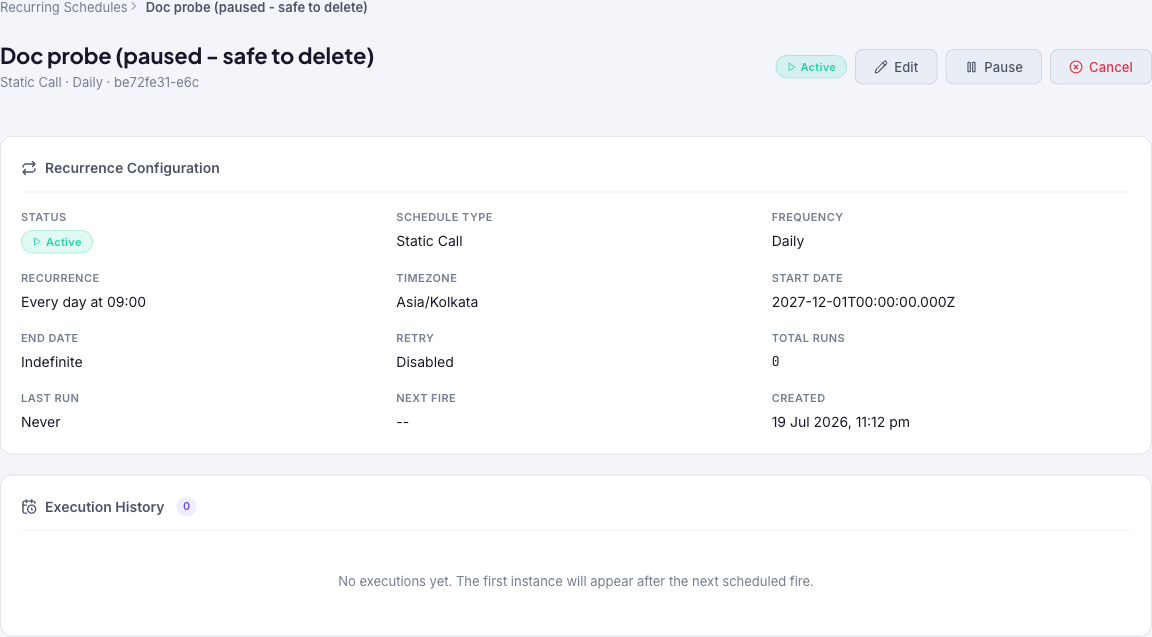
Review one recurring schedule at a glance — its status, type, cadence, timezone, start and end dates, retry setting, run counts, last run, and next fire — and read its execution history. The jump-off point to edit, pause, resume, or cancel the schedule.
Audience: Campaign schedulers · Page address: /app/recurring-schedules/:id · Your admin may need to enable this feature
Common tasks
- Read the recurrence configuration
- Check run counts and next fire
- Review execution history
- Edit, pause, resume, or cancel
How to use this page
1. Review the schedule at a glance
Confirm what a recurring schedule is set to do without opening the editor.
- Open the detail page by selecting a schedule's row on the Recurring schedules list. The breadcrumb reads Recurring Schedules > the schedule name.
- Read the Recurrence Configuration grid: Status (Active, Paused, or Cancelled), Schedule Type, Frequency, the human-readable Recurrence (for example Every day at 09:00), Timezone, Start Date, End Date (or Indefinite), and Retry.
- Check the run counters: Total Runs, Last Run (or Never), Next Fire, and Created.
- Confirm the tenant in the top bar matches where the calls or messages should go.
2. Read the execution history
Use the history as evidence of what the schedule actually did.
- Find the Execution History section; the count beside it shows how many instances have run.
- When the schedule has not fired yet, it reads No executions yet with a note that the first instance appears after the next scheduled fire.
- Once instances exist, review them to see how each run went, and drill into individual runs for their contact-level outcomes.
3. Act on the schedule
Move from reviewing to managing the schedule.
- Select Edit to change the cadence, recipients, or content — see Edit recurring schedule.
- Select Pause to stop the schedule temporarily (resume it later), or Cancel to stop it permanently.
- Cancelling asks for confirmation and warns that no future instances will be created, though existing instances are not affected.
Tips and troubleshooting
- Use recurring schedules for repeating operational sends, not one-off campaigns.
- Review upcoming instances after editing a recurring schedule so you know which future sends changed.
- Next Fire and Last Run tell you at a glance whether the schedule is producing runs on its cadence.
- Pause a schedule to stop it temporarily; cancelling is permanent and creates no future instances.